Keyboard and Mouse Position: How Wrist Posture Affects Your Shoulders

Your keyboard and mouse position decides how far your arms reach all day, and that reach decides whether your shoulders stay relaxed or creep up and forward. Keep your elbows near 90 to 100 degrees, your wrists straight, and your mouse right beside your keyboard.
Ergonomic keyboard and mouse position is a desk arrangement that keeps your elbows close to your body, your wrists straight, and your shoulders relaxed while you type and click.
TL;DR
- A mouse that sits too far away is one of the most common causes of shoulder tension at a desk. 🖱️
- Elbows should rest near 90 to 100 degrees, close to your sides, with shoulders dropped.
- Wrists should stay straight, not bent up, down, or out to the side.
- Keep the mouse as close to the keyboard as you can.
- Your shoulders often ache first, even though the problem starts at your hands.
- Small changes take five minutes, but they only help if you also move regularly.
What Is Ergonomic Keyboard and Mouse Position?
It's the third piece of a healthy workstation, after your chair and your monitor. The complete ergonomic desk setup guide covers all four pieces together. This article zooms in on your hands, because they do the most repetitive work of any part of your body.
Every reach, tilt, and wrist bend is small. But you repeat each one thousands of times a day.

Why Does Keyboard and Mouse Position Affect Your Shoulders?
Your hands go where your devices are, and your shoulders follow your hands. Think of it as a chain from fingertip to neck.
If the mouse sits far away, your arm reaches out and your shoulder rolls inward. If the keyboard is too high, your shoulders shrug up to meet it. If it's too low, your wrists bend and your shoulders slump.
Your brain also adapts to constant tension. You stop noticing it, so the ache shows up at 4pm instead of 9am. Stress and deadlines make it worse, because tense people tend to lift their shoulders without realising. Stress and tension between the shoulder blades explains that loop in more detail.
💡 Key Insight: Shoulder pain at a desk often starts below the shoulder. Fix the reach at your hands, and your shoulders usually stop having to compensate.
| Common Mistake | What Your Shoulders Do | Simple Fix |
|---|---|---|
| Mouse far from keyboard | Arm reaches out, shoulder rolls forward | Place the mouse right beside the keyboard |
| Keyboard too high | Shoulders shrug up | Lower the keyboard until shoulders drop |
| Keyboard too far away | Arms extend, upper back rounds | Pull it close to the desk edge |
| Wrists bent up or resting on a hard edge | Forearms tense, elbows lift | Keep wrists straight and hands floating |
| Full-size keyboard with number pad | Mouse pushed further out | Use a compact keyboard |

How Do You Set Up Your Keyboard and Mouse Correctly?
University ergonomics guidance is consistent on a few basics:
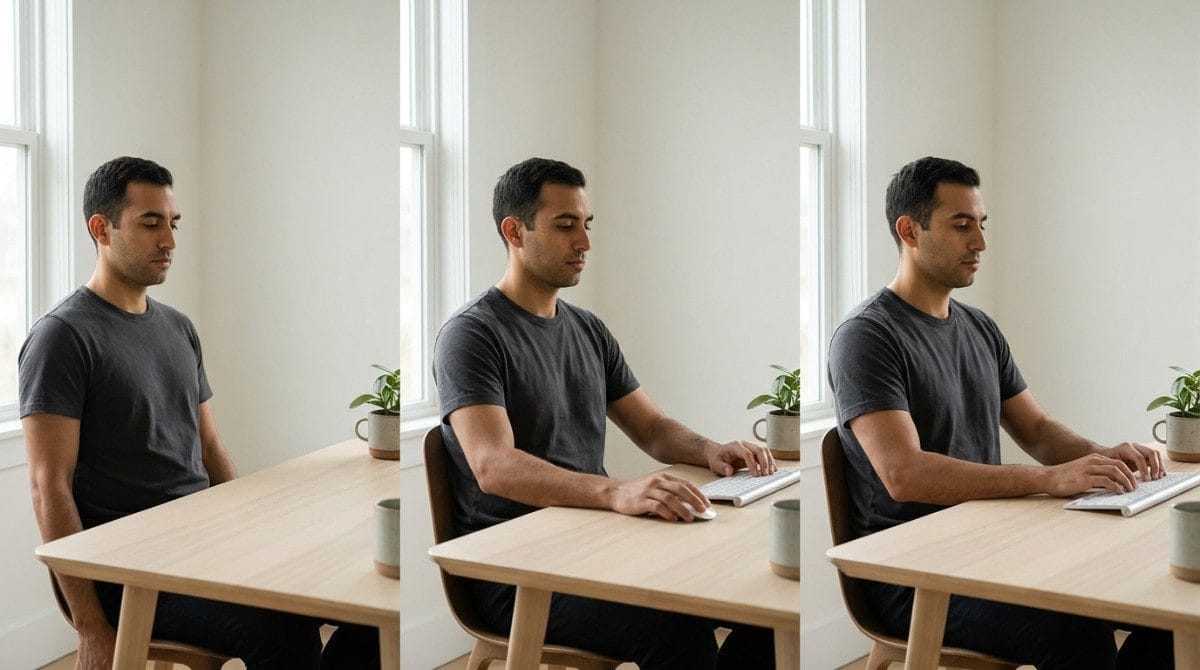
- Elbows: Keep them near 90 to 100 degrees, close to your sides.
- Wrists: Keep them straight, in line with your forearms.
- Keyboard tilt: Keep it flat, or with the back edge slightly lower, instead of propped on its feet.
- Mouse: Place it as close to the keyboard as possible, at the same height.
- Wrist rests: Use them to rest your palms between bursts of typing, not while typing.
- Shoulders: They should feel low and loose. If they feel lifted, something is too high or too far.
Not sure whether your shoulders are creeping up while you work? A quick side-profile scan in Backed AI shows how your shoulders and head actually sit, so you're not guessing.
What Happens If Your Keyboard and Mouse Position Stays Wrong?
Small reaches add up over months:
- Rounded shoulders. Constant forward reach pulls your shoulders inward. Rounded shoulders and forward head posture usually develop together.
- Tension between the shoulder blades. Your upper back works to hold your arms out. Desk setup for pain between the shoulder blades shows the full pattern.
- Wrist and forearm strain. Bent wrists keep forearm muscles working harder than they should.
- Shrugged, tight shoulders. A keyboard that sits too high keeps your upper traps switched on all day.
⚠️ When NOT to rely on setup alone: If you feel numbness, tingling, or night-time pain in your hands or arms, see a doctor or physiotherapist. A desk change won't replace a proper assessment.
When This Approach Doesn't Work
A tidy keyboard and mouse position fixes the reach. It won't fix everything:
- If you already have persistent hand numbness or sharp pain, get it assessed first.
- If you can't adjust your desk height, raise your seat and use a footrest instead.
- If you work for hours without breaks, even a perfect position will stiffen your shoulders.
- If your shoulders still roll forward after a good setup, the cause is usually habit and weak postural muscles.
Best Keyboard and Mouse Adjustments (Quick List)
- Move the mouse next to the keyboard. This removes the biggest daily reach.
- Pull the keyboard close. Your elbows should hang near your sides.
- Drop your shoulders first. Then set the keyboard height to match your elbows.
- Straighten your wrists. Raise or lower your chair if they bend.
- Switch to a compact keyboard. It brings the mouse closer to your midline.
- Float your hands. Rest your palms only between bursts of typing.
Setup Variations for Real Desks
- Laptop: Use an external keyboard and mouse, and raise the screen as shown in correct monitor height and distance.
- Shared or hot desk: Carry a compact keyboard and adjust your chair height instead.
- Left-handed: Mirror the setup, with the mouse on your left, close to the keyboard.
- Small desk: Remove the number pad, or use a slim keyboard to free up space.
The 30-Second Desk Reset (Timing Advice)
Do this every 30 to 45 minutes:
- Drop your shoulders and let your arms hang.
- Shake out your hands for a few seconds.
- Gently open your palms and spread your fingers.
- Squeeze your shoulder blades back and down, then release.
For a longer reset, wall angels for desk workers takes five minutes and needs no equipment.

Research & Expert Insight
Physiotherapists often recommend fixing reach distance before buying specialist equipment, because that single change removes the most strain. Ergonomics specialists suggest keeping input devices close together, with wrists straight and shoulders relaxed. Research in workplace ergonomics shows that frequent short position changes reduce strain more than any one ideal position held for hours.
Step-by-Step Recovery Framework: Set Up Your Keyboard and Mouse in 5 Minutes
- Sit in your normal working posture. Don't set up from a perfect posture you won't keep.
- Let your arms hang. Notice where your elbows naturally rest, near 90 to 100 degrees.
- Set the keyboard height so your forearms are roughly level and your wrists straight.
- Move the mouse right beside the keyboard, at the same height.
- Do a shoulder check. If they feel lifted, lower the keyboard or raise your seat.
- Recheck after a week. Take a side photo and see whether your shoulders still sit forward.
A good setup removes the strain your desk was adding. It doesn't undo shoulders that already sit forward after years of reaching. That takes targeted movement, ideally guided by something that knows your specific pattern.
Final Takeaway
Keyboard and mouse position comes down to three rules: elbows close and near 90 to 100 degrees, wrists straight, and the mouse right beside the keyboard. Get those right and your shoulders stop working overtime. Pair the setup with regular movement breaks, and you protect both your wrists and your posture.
A better keyboard and mouse position stops new strain from building. It doesn't reverse the rounded shoulders you've already developed from years of the old setup. That's the gap between adjusting your desk and actually correcting your posture.
Why Most Exercise Plans Fail
- Inconsistency. Without tracking, most people quietly stop after a week or two.
- Wrong form. Shoulder and upper back exercises done poorly can reinforce the pattern they're meant to fix.
- No progression. The same routine forever stops challenging the muscles that need to adapt.
- No personalization. A generic plan treats every shoulder position the same way.
Backed AI scans your posture through your phone camera, flags patterns like rounded shoulders and forward head posture, and builds a routine around what it finds instead of a generic list. It's a smarter alternative to random YouTube exercises, in three ways:
- Personalized to your actual scan, not a one-size-fits-all routine.
- Progress tracking that adapts as your shoulder position genuinely improves, not just your desk.
- Built-in consistency, with reminders that outlast the motivation of a new desk setup.
If your keyboard and mouse are finally in the right place and your shoulders still creep forward, that's the exact gap Backed AI is built to close. Download Backed AI and start correcting your posture today.
FAQ
How should I position my keyboard and mouse to avoid shoulder pain? Keep your elbows near 90 to 100 degrees and close to your sides, your wrists straight, and your mouse right beside your keyboard so your shoulders stay relaxed.
Can keyboard and mouse position cause shoulder pain? Yes. A mouse that's too far away or a keyboard that's too high forces your shoulders to reach or shrug, which can build tension in your shoulders and upper back over time.
How close should the mouse be to the keyboard? As close as comfortably possible, at the same height. A compact keyboard without a number pad brings the mouse closer to your midline.
Do wrist rests help or hurt? They help when you use them to rest your palms between bursts of typing. Resting on them while typing can bend your wrists and add strain.
What angle should my wrists and elbows be at when typing? Your wrists should stay straight, in line with your forearms. Your elbows should sit near 90 to 100 degrees, close to your body.